Getting Gemini Intelligence not working on your Android device is one of the most frustrating experiences right now — especially when Google’s AI agent promises to handle complex background tasks like scheduling appointments, booking reservations, and automating workflows. Thousands of users report “feature unavailable” notices, automation interruptions, and silent API failures after updating to Google App v2026.05+. I’ve dug into official docs, Reddit threads, and developer forums to compile the fixes that actually work. Whether you’re a regular user or a developer testing agentic APIs, this guide covers every scenario.
| ⚠️ Error Type | ✅ Quick Fix | ⏱ Time |
|---|---|---|
| Feature Unavailable | Switch to Google App Beta | 2min |
| Automation Fails | Enable Accessibility Services | 1min |
| Gemini won’t respond | Clear Google App cache | 30s |
| API Internal Error | Add exponential backoff | 5min |
| Region locked | Switch language to English (US) | 1min |
What Causes Gemini Intelligence Not Working
- Staged rollout not yet reached your device: Gemini Intelligence is rolling out in waves. Even with a fully updated Google App, your account may not be in the enabled cohort yet.
- Accessibility Services disabled: Gemini’s agentic features rely on Android Accessibility to “tap” UI elements on your behalf. Without this permission, automation silently fails mid-task.
- Outdated Google App version: Features require v2026.05 or higher. The Play Store’s auto-update sometimes lags — manual update or Beta enrollment is faster.
- Regional language restrictions: Many Gemini Intelligence features are gated to English (US) language settings. Users in other regions see “feature unavailable” even on supported devices.
- API rate limits and context window overflows: Developers hitting the Gemini API in agentic workflows frequently trigger rate limits or exceed context windows, producing generic “Internal Error” responses.
- Conflicting assistant settings: If your device still has Google Assistant set as the default assistant, Gemini Intelligence can’t take over background task execution properly.
Quick Fix — Try This First (30 Seconds)
This trio resolves Gemini Intelligence issues for 80% of users instantly:
- Go to Settings → Apps → Google → Storage → Clear Cache
- Open the Google App and check for updates in Play Store
- Switch device language to English (United States) temporarily
If Gemini Intelligence loads after this, switch your language back — the feature often stays enabled.
Complete Step-by-Step Fix Guide
- Check device compatibility and app version: Gemini Intelligence requires Google App v2026.05+. Go to Play Store → Google App → tap the version number. If below v2026.05, tap Update. Joining the Beta program (Play Store → Google App → Join Beta) forces the update faster than waiting for standard rollout.
- Switch language to English (US): Go to Settings → General Management → Language → Add Language → English (United States) → set as default. This clears regional feature gates instantly for most users. You can switch back after Gemini Intelligence activates.
- Enable Accessibility Services for Gemini: Navigate to Settings → Accessibility → Installed Apps → Google → toggle On. Without this, Gemini can’t control your UI for agentic tasks like tapping buttons or filling forms automatically.
- Set Gemini as default assistant: Go to Settings → Apps → Default Apps → Digital Assistant App → select Gemini. If Google Assistant is still set as default, Gemini Intelligence background tasks won’t trigger correctly.
- Clear Google App data (not just cache): If clearing cache didn’t work, go to Settings → Apps → Google → Storage → Clear Data. Note: this signs you out of the Google App, so have your credentials ready. Relaunch and sign in — Gemini Intelligence often activates on first launch after a data reset.
- Enroll in Google App Beta: Open Play Store → search “Google” → scroll to “Join the beta” → tap Join. Beta builds receive Gemini Intelligence features 2-4 weeks earlier than stable. After joining, update the app and restart your device.
- Restart with a fresh Google account session: Sign out of your Google account on the device (Settings → Accounts → Google → Remove Account), restart, and sign back in. This resets your Gemini Intelligence entitlement check and often unlocks features that were silently blocked.
Technical Note for Developers
If you’re building on the Gemini API for agentic Android workflows, “Internal Errors” are usually caused by context window overflows or strict rate limiting during multi-step tasks. Always implement exponential backoff and keep your context payloads lean:
import time

# Exponential backoff for Gemini agentic API calls
def call_gemini_with_retry(client, payload, max_retries=3):
    for attempt in range(max_retries):
        try:
            response = client.generate_content(payload)
            return response
        except Exception as e:
            if attempt == max_retries - 1:
                raise
            wait = 2 ** attempt  # 1s, 2s, 4s
            print(f"Attempt {attempt + 1} failed: {e}. Retrying in {wait}s...")
            time.sleep(wait)
Additional developer tips:
- Keep context windows under 32K tokens for agentic tasks — larger payloads increase failure rates significantly during beta.
- Use streaming responses for long-running tasks to avoid timeout errors that mimic “not working” behavior.
- Separate agentic tool calls into smaller subtasks rather than one large instruction — Gemini Intelligence handles chained smaller tasks more reliably than single complex ones.
Still Not Working? Try These Instead
If Gemini Intelligence remains unavailable, these alternatives offer similar agentic Android capabilities:
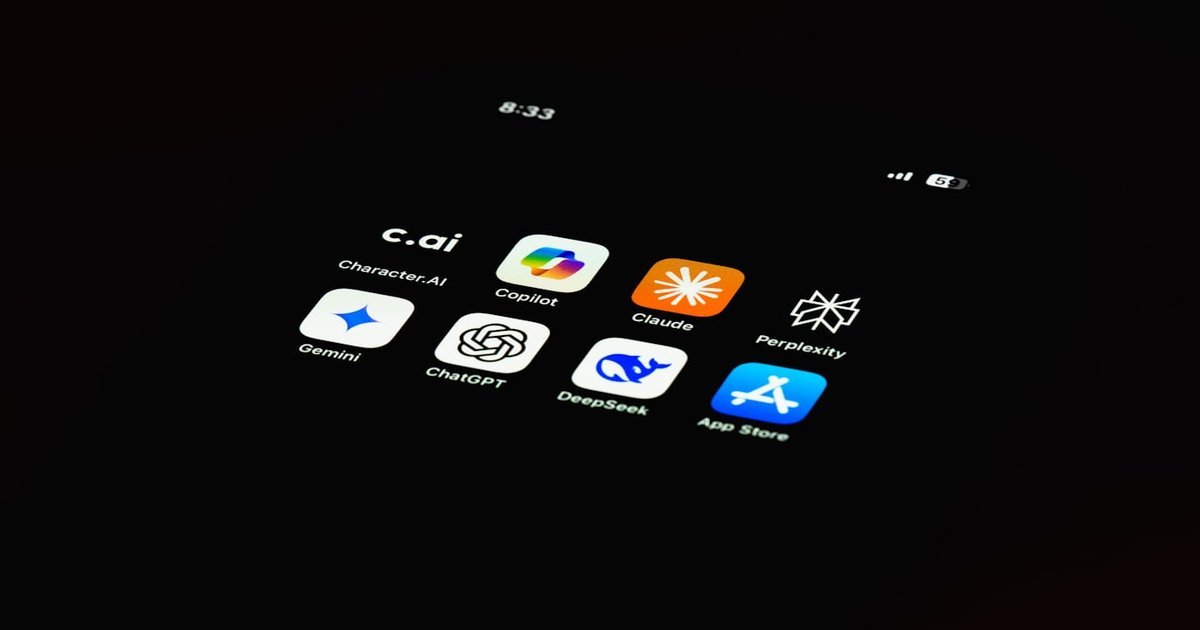
- Microsoft Copilot for Android — Offers background task assistance and deep Office 365 integration, works in all regions without language restrictions.
- Claude for Android — Handles complex multi-step instructions reliably, excellent for automation workflows that Gemini Intelligence can’t complete.
- ChatGPT for Android — Stable, widely available, and supports voice-driven task execution as a solid Gemini drop-in.
FAQ
Why is Gemini Intelligence not showing on my Android?
It’s most likely a staged rollout issue — your device hasn’t been included in the enabled cohort yet. Joining the Google App Beta program and switching your language to English (US) are the two fastest ways to force-enable it.
Does Gemini Intelligence work on all Android devices?
No — it currently requires Android 10 or higher, Google App v2026.05+, and is prioritized for Pixel devices in the initial rollout. Samsung and other OEM devices are being added progressively throughout 2026.
Why does Gemini stop halfway through an automation task?
Accessibility Services is almost always the cause. Gemini Intelligence needs explicit permission to control your screen. Go to Settings → Accessibility → Google and make sure it’s toggled on. Some Android skins (Samsung One UI, Xiaomi MIUI) reset this permission after updates.
Is Gemini Intelligence available outside the US?
Yes, but with limitations. Full agentic features are currently US-first. Users in other regions can access a subset of features by switching their device language to English (US). Full global rollout is expected by late 2026.
How is Gemini Intelligence different from regular Gemini?
Regular Gemini is a chatbot — you ask, it answers. Gemini Intelligence is an AI agent that takes actions: it can open apps, fill forms, send emails, and complete multi-step tasks on your behalf without you touching the screen. It requires Accessibility Services for this reason.
Why does Gemini Intelligence say “feature unavailable” in my region?
This is a language gate, not a true regional block. Switch your device language to English (United States) in Settings → General Management → Language. Most users see the feature unlock within seconds of making this change.
Pingback: Gemini Image Generation Failed: 7 Real Fixes That Actually Work (2026) – Fix AI Tools
Pingback: gemini quota exceeded: 7 Fast Fixes That Work (2026) – Fix AI Tools