| 🔧 What You Need | ✅ Where To Get It | ⏱ Time |
|---|---|---|
| Claude Code CLI | claude.ai/code | 2min |
| Free NVIDIA NIM API key | build.nvidia.com | 3min |
| Proxy server (Jan AI) | jan.ai | 5min |
| Connect & verify | Terminal | 2min |
GLM-5.2 in Claude Code is quickly becoming a favorite free combo for developers. Z.ai’s model lands surprisingly close to Claude Opus 4.8 across multiple coding benchmarks, while costing roughly nine times less to run. But here’s the part that really gets people’s attention: with the right setup, you don’t have to pay anything at all to use it.
In this guide, I’ll show you how to run GLM-5.2 directly inside the Claude Code CLI, completely free, by routing it through a free NVIDIA NIM API key and a lightweight proxy server called Jan AI. No Anthropic subscription, no API billing — just the Claude Code interface you already know, powered by a different model underneath.
By the end of this walkthrough you’ll have Claude Code talking to GLM-5.2 for every model slot — Opus, Sonnet, and Haiku all pointed at the same free, high-performing model.
Why Run GLM-5.2 in Claude Code
Claude Code is one of the most polished agentic coding CLIs available, but by default it talks to Anthropic’s paid API. GLM-5.2 is an open, NVIDIA-hosted model that performs impressively on coding tasks and is available through a free tier on NVIDIA NIM. The catch is that Claude Code speaks Anthropic’s API format, while NVIDIA NIM exposes an OpenAI-compatible API — the two can’t talk to each other directly.
That’s where a proxy server comes in. It sits between Claude Code and NVIDIA NIM, translating requests back and forth so the CLI thinks it’s talking to Claude while it’s actually talking to GLM-5.2.
Quick Start — The Three Things You Need
Before diving into the full walkthrough, here’s the short version of how to run GLM-5.2 in Claude Code. You only need three things to make this work:
- Claude Code installed on your machine (without logging in with an Anthropic account).
- A free NVIDIA NIM API key from build.nvidia.com.
- A proxy server — Jan AI is the simplest option, since LiteLLM requires a lot of manual configuration.
If you already have Claude Code installed and logged in, just run the logout command first — the setup won’t work correctly while an Anthropic account session is active.
Complete Step-by-Step Setup Guide
Step 1: Install Claude Code
Search for Claude Code and head to the official install page, which has instructions for Mac, Windows, and Linux. Copy the install command for your platform, paste it into your terminal, and let it finish installing. If you already have it installed, run the logout command so no Anthropic account is active — this setup routes everything through GLM-5.2 instead.
Step 2: Get a Free NVIDIA NIM API Key
Go to build.nvidia.com and create a free account if you don’t already have one — you’ll need to verify it with a phone number. Once verified, click your profile icon, go to API Keys, and generate a new key. Give it a name, set an expiration if you’d like, and hit generate. Copy the key immediately and store it somewhere safe, since NVIDIA won’t show it to you again.
Step 3: Choose Your Proxy Server
You have two realistic options here: LiteLLM or Jan AI. LiteLLM is powerful but requires manual configuration files and troubleshooting that can easily eat up an hour of your time. Jan AI, on the other hand, has a built-in NVIDIA NIM integration and a Claude Code connector, which makes the whole process take just a few minutes. This guide uses Jan AI.
Step 4: Install and Configure Jan AI
Download Jan AI for your operating system and install it. When it opens, you don’t need to download any of its bundled local models — skip that. Instead, go to Settings, scroll down to the NVIDIA NIM option, and make sure it’s toggled on. Paste your NVIDIA NIM API key into the field provided, then click the refresh button. Jan AI will pull in over a hundred NVIDIA-hosted models, GLM-5.2 included — scroll to the bottom of the model list to find it.
Step 5: Connect Jan AI to Claude Code
Inside Jan AI, open the Integrations section and select Claude Code. You’ll be asked to choose a model for three slots: large, medium, and small. Set the large and medium model to GLM-5.2 (make sure you pick 5.2, not the earlier GLM-5 build). For the small model you can technically choose anything, but using GLM-5.2 across the board keeps things consistent. Click Save and Enable — Jan AI will spin up a local server and update your environment variables automatically.
Step 6: Relaunch and Verify
Check the Local API Server tab in Jan AI and confirm it shows as running — leave this server active, since Claude Code depends on it. Close and reopen your terminal so the updated environment variables take effect, then type claude and press Enter. If this is your first run, pick a theme and confirm you trust the current folder. Run /model inside Claude Code and you should see GLM-5.2 set as the model for Opus, Sonnet, and Haiku alike.
Step 7: Test It Inside a Real Project
Send a simple message like “hi” first to confirm the connection responds — the first reply is usually slower since the model is loading. Once that works, open a terminal inside an actual project folder, run claude, and ask it something practical, like debugging a broken script. You’ll see it read the code, reason through the issue, and start writing fixes — this is GLM-5.2 in Claude Code running completely free.
Common Setup Mistakes
A few issues come up repeatedly for people trying this setup for the first time:
- Staying logged into an Anthropic account: Claude Code will try to use your Anthropic subscription instead of the proxy. Run the logout command first.
- “Unable to connect to API (ConnectionRefused)”: This almost always means the Jan AI local server isn’t running. Reopen Jan AI, check the Local API Server tab, and make sure it’s active before launching Claude Code.
- Old environment variables: If Claude Code still points to the wrong model after setup, fully close and reopen your terminal so the updated variables load.
- Picking the wrong GLM version: Make sure you select GLM-5.2 specifically in the model search, not GLM-5.
Still Want Other Options?
If Jan AI doesn’t fit your workflow, or you want more control over routing and logging, LiteLLM is the more advanced alternative — it supports the same NVIDIA NIM connection but requires writing your own config file and running it as a local proxy manually. It’s worth it if you’re comfortable with YAML configs and want fine-grained control over model routing.
NVIDIA NIM also hosts well over a hundred other free models beyond GLM-5.2, so once this setup is working, you can swap in a different model for any of the three slots (large, medium, small) without changing anything else.
FAQ
Is this actually free?
Yes — running GLM-5.2 in Claude Code costs nothing, since NVIDIA NIM offers a free tier for GLM-5.2 and many other models, and Jan AI is free and open source. You’re not paying Anthropic anything, since Claude Code is simply being redirected to a different backend.
Do I need a Claude Pro subscription?
No. Because Claude Code is pointed at GLM-5.2 through the proxy rather than Anthropic’s own servers, you don’t need an active Anthropic account at all — in fact, staying logged in can interfere with the setup.
How close is GLM-5.2 to Claude Opus 4.8?
On published coding benchmarks, GLM-5.2 scores surprisingly close to Opus 4.8, while running at a fraction of the cost. Real-world results will vary by task, but for everyday coding and debugging it holds up well.
What if Claude Code shows a ConnectionRefused error?
Open Jan AI and confirm the Local API Server is running before launching Claude Code. If it was already running, restart both Jan AI and your terminal, since a stale server session is the most common cause when running GLM-5.2 in Claude Code.
Related Fix Guides

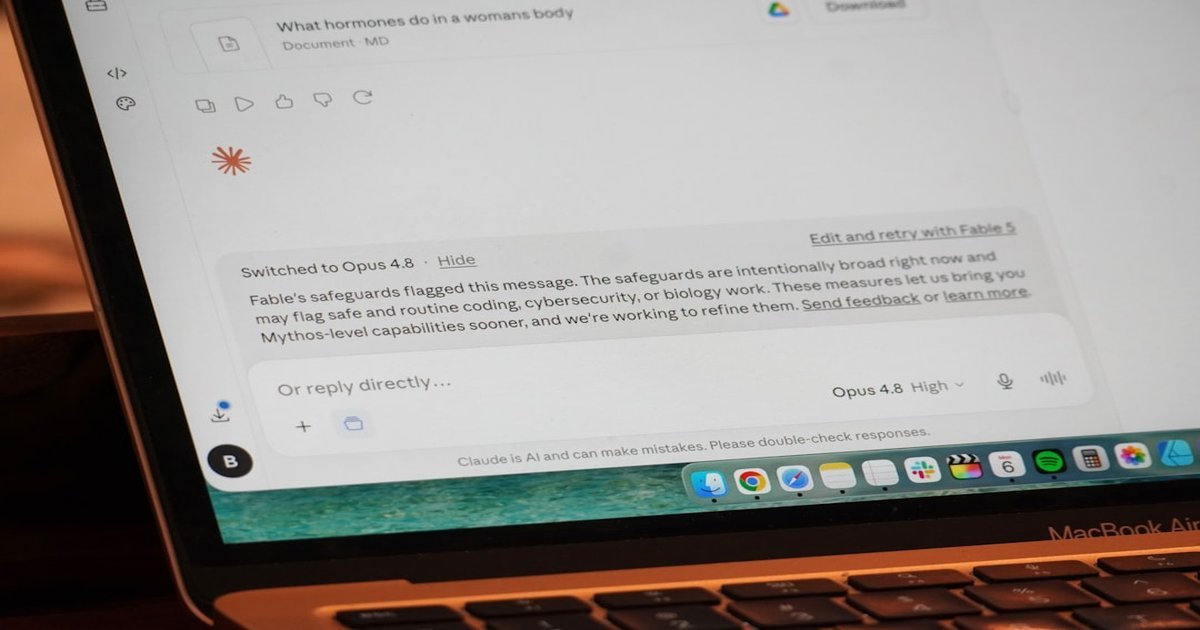
Related fix guide: claude error: 7 Fast Fixes That Work (2026)
Related fix guide: claude files upload error: 7 Fast Fixes That Work (2026)
Pingback: claude context window error: 7 Fast Fixes That Work (2026) – Fix AI Tools
Pingback: How to Use Claude Code for Free: Skip the $200 Monthly Fee – Fix AI Tools
Pingback: Claude Code Remotion: Revolutionize YouTube Videos – Fix AI Tools